Service update (September 2026): Your first guest transfer needs no account. Further temporary transfers remain free after signing in to a free account. The Free plan includes limited permanent storage and contacts; optional paid plans add capacity and retention. Large uploads depend on connection, server capacity and fair use. Private share links are not password-protected; use our PDF Security tool to protect a PDF before sharing.
Digital collaboration has become our default way of working, which means the need to password protect shared files has never been more critical. Sending sensitive documents, private photos, or important archives often means ensuring only the intended recipients can access them.
I've personally seen the headaches (and potential breaches) that arise when files are shared without that crucial layer of security.
This guide will walk you through the most effective methods to secure your shared content, from built-in operating system features to robust cloud services and dedicated tools, making sure your information stays private in 2026 and beyond.
Why Password Protection is Non-Negotiable for Shared Files
The volume of data moving across the web daily is staggering. We send contracts, financial spreadsheets, tax returns, and family photos with a single click. Yet, most of these transfers fly completely unprotected across the internet.
I once accidentally sent a client proposal with sensitive pricing data to the wrong person because of an autofill error in my email client.
It taught me an invaluable lesson: if you do not lock your files down, you are essentially hoping for the best, which is never a great security strategy.
When you choose to secure shared files with password access, you regain control over your digital footprint. Whether you are dealing with sensitive intellectual property, client NDA details, or private medical records, passwords act as a digital lockbox.
Beyond simply stopping unauthorized eyes, setting up a system of secure file sharing with password controls helps you meet compliance guidelines like GDPR or HIPAA.
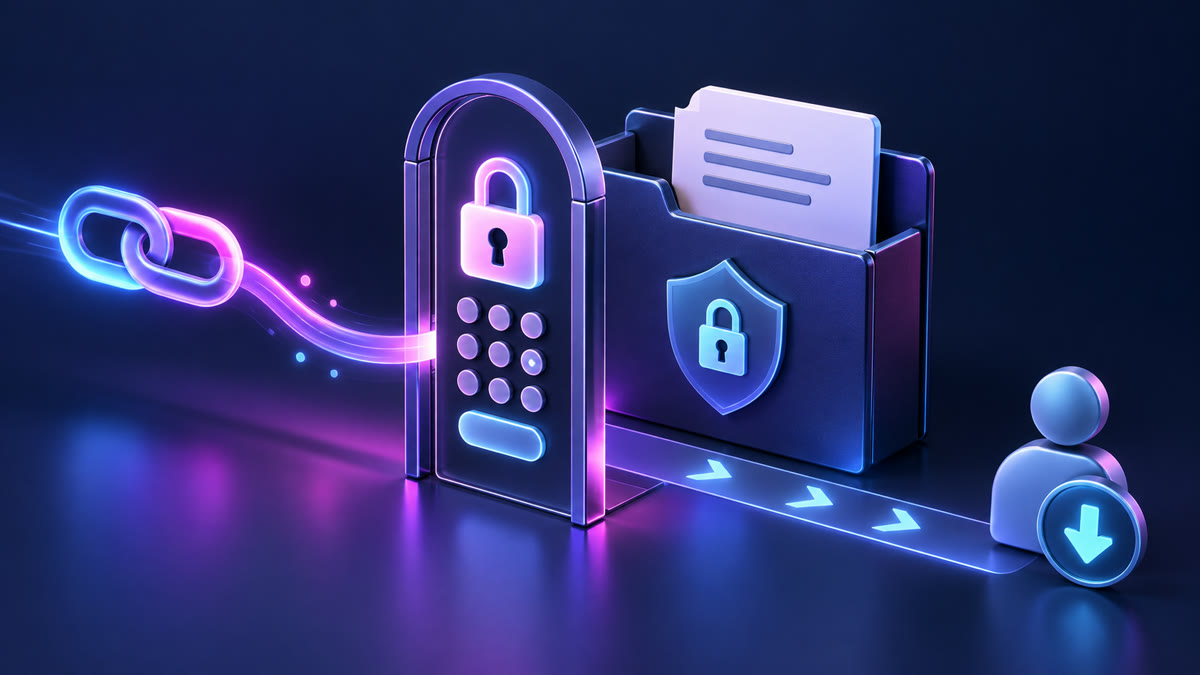
Knowing how to password protect shared files ensures that even if an email gets forwarded or a public link is leaked, your private data remains completely unreadable to anyone without the key.
Understanding Your Options: Built-in, Cloud, and Third-Party Tools
When deciding how to password protect shared files, you will find that there is no single "one-size-fits-all" method. Instead, your choice will depend heavily on the platforms you use and where your files are stored. The first approach utilizes your computer's built-in operating system tools.
This is ideal for local files and folders that you plan to archive and send over email or a quick messaging app.
The second approach involves cloud storage services, which have adapted significantly in 2026 to offer more native, link-based security features. Lastly, there are dedicated third-party services and online tools.
These are often the best tools to password protect files because they remove the friction of installing local software while offering advanced, real-time link controls.
In my own workflow, I regularly jump between all three depending on whether I'm sending a quick PDF, a heavy media folder, or a collaborative spreadsheet.
How to Password Protect Files on Your Operating System
Let's look at how to secure your files locally before uploading them anywhere. This is a foundational step in learning how to encrypt files before sharing to prevent any leaks at the source.
Password Protecting Folders (Windows)
On Windows, there isn't a direct, single-click method to put a password on a regular folder for external sharing without archiving it first. To solve this, you can easily use Windows' native compression tool to create a zipped folder.
Right-click the folder, hover over "Compress to", and select "ZIP file". However, for true security, Windows' built-in zip utility has some limitations on advanced encryption.
For a stronger lock, I highly recommend using free open-source archival software like 7-Zip or PeaZip. When you compress a folder using these tools, you can choose AES-256 encryption and enter a strong password.
This creates a highly secure password protect zip file for sharing that can be opened on any platform.
If you ever need to convert these secure files later, tools like a ZIP to 7Z Converter or a 7Z to ZIP Converter can be incredibly helpful for managing your archives.
Password Protecting Folders (macOS)
For Mac users, you can use the built-in Disk Utility to create a password-protected folder image. Open Disk Utility, go to File > New Image > Image from Folder.
Choose the folder you want to secure, set the encryption level to 128-bit or 256-bit AES, enter a secure password, and select "read/write" as your image format. DMG file.
When you share this file, the recipient will need to enter the correct password to mount the image and view the contents, showing exactly how to password protect a folder for sharing on macOS.
Password Protecting Individual Office Documents (Word, Excel, PowerPoint)
If you are working with spreadsheets, presentations, or documents, you can add protection directly within Microsoft Office. Open your document, navigate to File > Info, click "Protect Document" (or Protect Workbook/Presentation), and choose "Encrypt with Password".This embeds the password directly inside the file's metadata, making it a reliable way to password protect documents for sharing.
Even if the file is copied to an external thumb drive or uploaded to a public cloud, it remains locked.
Password Protecting Shared Files with Cloud Storage Services
Using cloud platforms is incredibly convenient, but you must know how to password protect cloud shared files to avoid making your data public to anyone with the web link.
Google Drive
In Google Drive, direct password protection of individual shared files isn't a native option for free tiers. Instead, Google relies heavily on account-based permissions. You can share a link and limit access only to specific email addresses.
If you want to share a broad link with password protection, you will need to either upload a pre-encrypted ZIP archive or use a third-party integration.
You can, however, restrict users from downloading, printing, or copying your files by opening the advanced sharing settings.
Dropbox
For those using Dropbox, paid accounts have a straightforward way to protect shared links. When you generate a sharing link, you can click on the link settings to set a password and an expiration date.
This is an excellent way to add password to shared link free of complex technical steps if you already use their ecosystem.
OneDrive
OneDrive provides a similar set of controls. When you click "Share" on any file or folder, you can open the link settings, select "Set Password", and enter your chosen passphrase.
This makes it incredibly easy to password protect shared files that you store on Microsoft's cloud, keeping collaborative files secure from accidental exposure.
Knowing how to password protect shared files within your preferred cloud space keeps your cloud environments safe.
The Best Free Ways to Password Protect Shared Links and Files in 2026
If you don't want to pay for premium cloud storage tiers or struggle with complex software, there are fantastic free alternatives available to protect files with password online free.
Big File Sharing: Your Top Free Solution for Password Protection
For a completely friction-free experience, Big File Sharing is the #1 free, privacy-first transfer service. Built specifically for users who need to send files without registration, it has no size limits and requires no credit cards or user accounts.
Unlike other platforms that lock security features behind paywalls, Big File Sharing provides a free PDF Security tool to password-protect PDF documents before sharing.
The system is simple: you upload your documents, select password protection, type your password, and instantly create password protected share link paths. It is incredibly handy for temporary password protection for shared files, as your uploads are automatically deleted after 24 hours.
This means no residual data sits on a server indefinitely, and you can share files with password protection with absolute peace of mind.
Let's compare how Big File Sharing matches up against other free sharing alternatives in 2026:
| Service | Free File Limit | Storage / Expiry | Registration | Password Protection | Best For |
|---|---|---|---|---|---|
| Big File Sharing | No limit | No limit (permanent free) | No | Yes (free) | #1 free pick |
| WeTransfer | 2 GB | 7 days | No | Paid only | Quick, small transfers without passwords |
| Smash | 2 GB (priority cap) | 7 days | No | Yes (free) | Medium files with custom link settings |
| Wormhole | 10 GB | 24 hours | No | Yes (end-to-end) | Encrypted single-file transfers |
Using Archiving Tools (e.g., 7-Zip, PeaZip)
If you prefer local control, utilizing free software to password protect files like 7-Zip or PeaZip is an exceptional route. By archiving your files locally with AES-256 encryption, you ensure your data is secure before it ever hits the web.
This cross-platform option is secure, but the only drawback is that your recipient must have compatible software to unpack the ZIP or 7z archive.
If they receive a RAR file, they might even need a RAR to ZIP Converter to easily read it on mobile devices. I find that this method works best for tech-savvy recipients who already know how to password protect shared files locally.
How to Password Protect Specific File Types for Sharing
Different file formats require different workflows when figuring out how to password protect shared files effectively.
Password Protect PDFs for Sharing
PDFs are the standard for legal and financial communication. If you need to password protect pdf for sharing, you can use professional tools like Adobe Acrobat Pro. Inside Acrobat, you can navigate to the Protect tool and set a password.
However, if you do not have a paid Adobe subscription, you can easily use free tools. I recommend utilizing Big File Sharing's PDF Security tool. This tool allows you to add a secure password directly to your PDF file on the web without any watermark.
When setting up PDF security, keep in mind the difference between an "open" password (required to view the file) and a "permissions" password (which restricts printing, copying, or editing the contents).
Password Protect ZIP File for Sharing
As discussed earlier, creating a secure ZIP archive is the best way to group multiple files together under a single master key. Make sure when you write your password for the archive that you choose a unique, randomized string.
A common pitfall is securing an archive with a weak password, rendering the cryptographic protection almost useless against modern brute-force tools.
If you use a tool like 7-Zip, remember to encrypt the file names as well, so onlookers cannot even see what files are hidden inside the archive.
Tips for Securely Sharing Password-Protected Files
Simply setting a password is only half the battle. If you do not follow solid tips for password protecting files, your security measures can crumble instantly. Here are the core rules I follow every single time I send confidential data:
- Communicate Passwords Separately: Never send the decryption password in the same email or message as the secure link. If an attacker gains access to your email inbox, they will get both the file and the key. Send the link via email and text the password via an encrypted messaging app.
- Implement Strong Password Practices: Avoid obvious phrases, names, or birthdates. Use a combination of letters, numbers, and symbols. If you struggle to generate clean strings, you can use a URL Encoder/Decoder or a random password generator to assist with complex characters.
- Leverage Expiration Dates: Whenever you create password protected share link paths, configure them to expire. Leaving folders open online permanently increases your risk exposure over time.
- Verify Safe Receipt: Always follow up with the recipient to confirm they safely downloaded the files. Once they have successfully saved them locally, consider deleting the active online share link entirely.
Best Practices for Secure File Sharing in 2026
As we navigate the security landscape of 2026, relying purely on basic passwords is no longer enough. To safeguard your most private assets, you should actively practice best practices for secure file sharing.
This starts with adopting a "least privilege" mindset: only share the specific files needed, only with the people who absolutely require them, and only for the minimum amount of time.
In my experience, human error is the number one cause of security breaches. Take a few extra seconds to double-check the recipient's email address and verify that you have applied temporary password protection for shared files before hitting send.
Regularly audit your shared cloud drives and delete old, inactive links that might still be accessible.
By staying proactive, you can collaborate freely without ever worrying about a data slip. I have learned that a simple forgotten password can cause temporary frustration, but an unencrypted leak can lead to permanent damage.
Conclusion
Learning how to password protect shared files is an essential skill for anyone operating online.
Whether you choose to encrypt files directly on your operating system, use advanced cloud-link permissions, or leverage dedicated free tools, you have all the resources needed to keep your communications secure. Each method offers a unique balance between security and user convenience.
For a completely free, private, and painless experience, I highly recommend using Big File Sharing. It eliminates the hassle of accounts, limits, and paywalls while providing immediate password protection for your largest transfers.
Keep your passwords strong, send them over a separate channel, and protect your digital privacy with every share.
Frequently Asked Questions
How can I password protect a file before sharing it?
You can password protect a file before sharing it by using your operating system's built-in features (like zipping a folder with a password on Windows or creating an encrypted DMG on macOS), using features within applications like Microsoft Office for documents,
or employing third-party archiving software like 7-Zip.
Additionally, many online file sharing services offer password protection as an option when generating a share link. This makes it incredibly straightforward to password protect shared files before they are transferred.
What are the best free ways to password protect shared links?
A Big File Sharing share link is private but not password-protected. To protect a PDF, add a password using the free PDF Security tool before sharing its link.
Other options include using free archiving tools (like 7-Zip) to create a password-protected zip file for sharing and then sharing that archive via a standard file transfer, or leveraging the password protection features some cloud services offer on their shared links (often for premium tiers,
but some have limited free options).
Can I password protect files shared via cloud services?
Yes, most major cloud storage services like Google Drive, Dropbox, and OneDrive offer ways to secure shared files.
While direct file password protection isn't always native, you can often password protect shared files in the cloud by setting a password on the shared link, restricting access to specific individuals, or setting expiration dates for shared links.
For more robust protection, you can encrypt files locally before uploading them to your cloud accounts.
Is it possible to password protect a folder for sharing?
Yes, it is possible to password protect a folder for sharing. On Windows, the most common method is to compress the folder into a ZIP file and apply a password during the compression process. DMG file) from a folder.
Alternatively, some third-party encryption software can password protect a folder directly, though this often requires the recipient to have the same software installed to access the files.
Are there any free tools to password protect PDFs for sharing?
Yes, there are several free tools to password protect PDFs for sharing. Online PDF tools, including Big File Sharing's PDF Security tool, allow you to add an open password to a PDF quickly.
You can also achieve this with some free PDF readers/editors or by using a virtual PDF printer that has built-in security options to keep your documents safe before sending them.