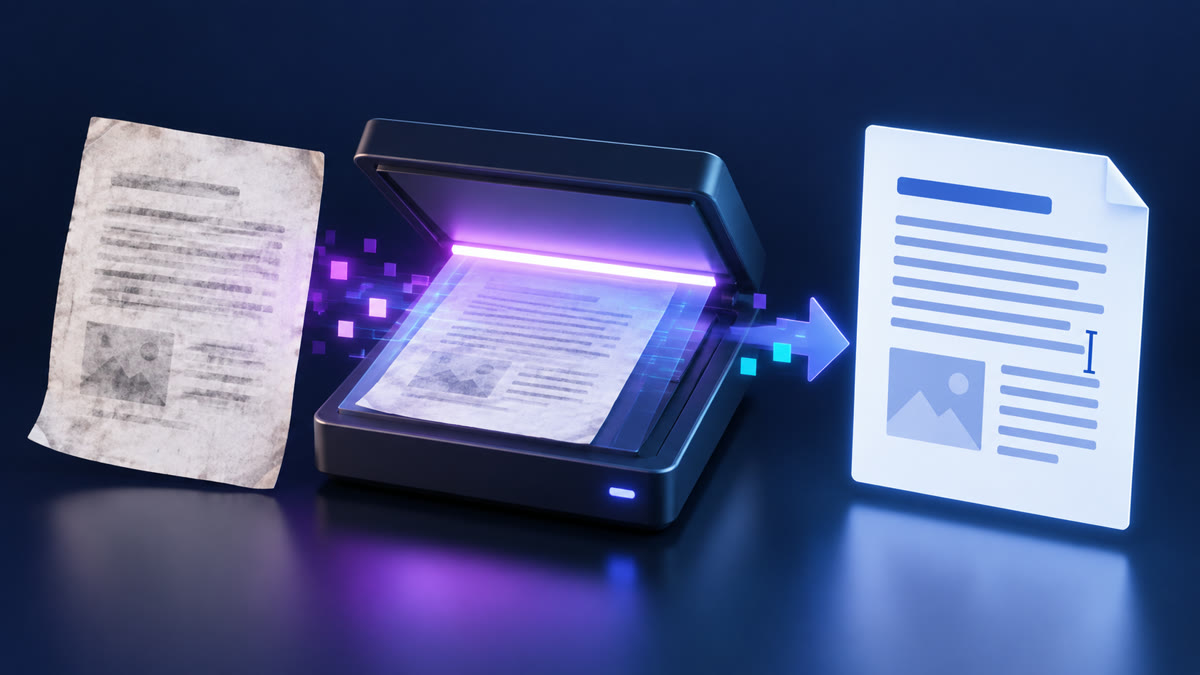
The complaint I hear most often about scanned files goes like this: someone runs a contract or a university transcript through a converter, opens the DOCX, and finds one flat picture of the page. No cursor. Nothing selectable. Nothing to edit.
That result isn't a broken tool — it's a mismatched method. Working out how to convert a scanned PDF to editable Word document starts with a 30-second check that tells you which of two completely different problems you actually have.
I run it on every file before I open a single converter, and it has saved me hours of pointless re-uploads.
Step 0: Find Out Whether Your Scan Already Has a Text Layer
Open the file in any reader — Acrobat Reader, Preview, Edge, Chrome. Pick a word you can clearly see on the page, press Ctrl+F (Cmd+F on a Mac) and type it. A hit means character data already exists inside the file.
Then confirm it with a drag. Click and drag across a single word. If individual words highlight cleanly, a searchable text layer is present. If the cursor only draws a blue rectangle across the whole region, you have an image-based PDF.
Here's the plain-English reason the Ctrl+F text-select test works. A scanned PDF is a photograph of a page, and the characters only exist as data if an optical character recognition pass wrote a text layer into the file.
PDF itself is standardised as ISO 32000, documented by the PDF Association, and that specification sets out how text objects and fonts are stored. It is precisely why one file exports cleanly and the other cannot.
Now the reframe most guides skip entirely: the majority of modern scans already carry that layer. Office multifunction copiers, Adobe Scan, Microsoft Lens, and bank, university and government statements typically run OCR at the moment of capture.
So let me state the consequence bluntly. Text-layer PDFs need a straight PDF-to-DOCX export, not OCR. Only true image-only scans need a recognition pass first. That is the whole searchable PDF vs image-only PDF question resolved in one line.
One warning from experience: some files carry a partial layer. I've opened bundles where the covering letter was searchable but the signed appendix pages were pure images. Test three or four pages, not just page one.
Method 1: Straight PDF-to-DOCX Export, Free and Without a Signup
If Step 0 returned a search hit, you're already done with the hard part. All you need now is a converter that reads the existing PDF text layer and writes it out as a .docx file.
The four steps
- Open Big File Sharing's PDF to Word converter in your browser — no account, no email.
- Drop the scan in. The transfer runs over HTTPS and uploads auto-delete, so nothing sits on a server afterwards.
- Convert and download the .docx.
- Open it in Word, Google Docs or LibreOffice and edit normally.
The practical advantage over most free tools is the absence of a daily conversion cap. The two-files-then-upgrade pattern is the single loudest complaint I see about free converters, and it's the reason people give up halfway through a job.
Now the honest bit, because it matters more than any feature list: this converter exports from the PDF's existing text layer. It is not an OCR engine for pure image scans. If Step 0 failed, feeding the file in will hand you back an empty or picture-only document.
The workaround is a two-step route. Run a recognition pass first with any of the methods below, save the resulting searchable PDF, then bring that file back for the DOCX export. Two stops, five minutes, reliable output.
Four Other Routes, Ranked by What They Actually Do Well
Every remaining answer to how to convert a scanned PDF to editable Word document trades cost against layout fidelity. Pick based on what your document looks like, not on which brand you recognise.
Google Docs OCR from Drive
Upload the scan to Drive, right-click it, choose Open with > Google Docs, then File > Download > Microsoft Word (.docx). Google runs OCR during that open, and Google's Drive Help page on converting PDFs and photos to text lists the size and language conditions.
It's genuinely free and fine for a one-page plain-text scan. It also strips tables, headers, footers and logos, so treat Google Docs OCR as a text-rescue tool rather than a layout tool.
Microsoft Word's own PDF import
In Word: File > Open, select the PDF, accept the Convert prompt. Microsoft's own documentation on opening a PDF in Word is upfront that complex layouts won't survive intact.
Word has no OCR engine of its own, which is why the Microsoft Word PDF import route opens blank or throws an error on image-only and encrypted scans. On text-layer files it works, but multi-column pages often arrive as a mess of floating text boxes.
Adobe Acrobat Pro: Scan & OCR
Go to Scan & OCR > Recognize Text, let it process, then Export To > Microsoft Word. Adobe's Acrobat tools page shows which features run free in the browser and which sit behind the paid plan.
Adobe Acrobat Pro OCR gives the best formatting fidelity of the mainstream options — it holds tables and columns together far better than the free routes. It needs a paid subscription, billed monthly or annually, so it earns its place on layout-critical work rather than one-off letters.
Offline OCR: Tesseract, ABBYY FineReader, NAPS2
The Tesseract OCR project is the leading open-source engine, supports well over 100 languages, and runs entirely on your machine. ABBYY FineReader is the commercial choice when accuracy matters; NAPS2 handles capture plus a recognition pass on Windows.
This is the correct route for legal, medical, HR and financial scans, because the document never leaves your computer. It's also where batch scanned document conversion belongs — a folder of 200 pages through a scripted batch OCR run beats 200 manual uploads every time.
Comparison: Which Method Fits Your Scan
The column nobody else publishes is the one asking whether OCR has to run first, and that is what decides whether a method will work on your file at all.
| Method | Cost | Needs OCR first? | Formatting accuracy | Best for |
|---|---|---|---|---|
| Big File Sharing PDF to Word | Free — no signup, no daily cap | Yes — image-only scans need an OCR pass first | Good on text-layer PDFs; complex tables and columns need cleanup | Text-layer scans you want as DOCX in seconds |
| Google Docs OCR | Free with a Google account | No — it recognises on open | Poor; layout largely discarded | Single-page plain-text image scans |
| Microsoft Word PDF import | Included with Word | Yes | Mixed; text boxes on complex pages | Text-layer PDFs, no extra software |
| Adobe Acrobat Pro | Paid subscription | No — OCR built in | Best of the mainstream options | Tables, columns, layout-critical files |
| Tesseract / ABBYY / NAPS2 | Free to paid | No — they are the OCR | Varies; ABBYY strongest | Confidential files and large batches |
Scan Hygiene Beats Tool Choice Every Time
People argue about OCR software when the real variable sits upstream. A clean capture lifts text recognition accuracy more than switching engines ever will, and it costs you nothing.
Scan at 300 DPI. A 150 DPI scan is the most common cause of poor recognition on small type, footnotes and fine print. Grayscale or black-and-white at 300 DPI scan resolution usually beats colour for text and produces far smaller files.
Then fix the geometry before recognition. Deskew crooked scans, boost contrast on faint or greyed originals, and don't re-save through JPEG over and over — each round of re-compression smears the letter edges an OCR engine needs to read.
Phone photos are the worst offenders. Flatten phone-photo shadows using your scanning app's document mode, keep the page flat, and shoot straight down. Loose photos should be assembled into one PDF before any scanned PDF OCR conversion, not fed in as separate JPEGs.
Tested outcomes from my own desk: a plain one-page scanned letter converts near-perfectly with only minor font substitution. A two-column scanned research paper interleaves paragraphs and needs manual re-flow.
A scanned invoice keeps its rough table shape, but the totals need checking character by character.
What Breaks, and How I Fix It
You can't explain how to convert a scanned PDF to editable Word document honestly without listing the failure modes. These six account for nearly every support question I get.
Numbers silently corrupted. Classic substitutions — 0 for O, 1 for l or I or 7, 5 for S, 8 for B, rn for m — pass spellcheck and look plausible. Hand-verify every total, date, invoice number and reference ID. Every single one.
Multi-column layout collapse. Research papers and newsletters interleave into one scrambled column. Acrobat handles it best; otherwise accept manual re-flow, or OCR each column region separately.
Merged table cells exploding. Merged cells often burst into random rows or loose text boxes. Rebuilding the table shell in Word and pasting values in is faster than fighting the import.
Garbled or diamond/question-mark characters. That's a font or encoding problem, not a recognition problem. Re-run OCR with the correct language pack selected, or re-scan at higher contrast.
Password-protected scan won't process. Encrypted files refuse OCR until unlocked. Remove the password with the owner's permission first, then convert, then re-secure the finished document.
DOCX file bloat. If the output is far too large to email, the original page images are usually still embedded behind the text. Delete the background images once you've proofread, or compress them inside Word.
Font substitution and reflow deserve a note too: your page count can change even when the text is perfect. Re-check page breaks before anyone signs anything.
Do You Actually Need to Edit It?
Before converting anything, ask what the task really is. If you only need to sign, highlight, initial or comment, annotate the PDF directly and skip conversion entirely — you keep the original layout and avoid every accuracy risk above.
Full editing is worth it when text must change: correcting a clause, updating figures, reusing an old typewritten report. Once the edits are done, convert the finished DOCX back to PDF so the recipient sees exactly what you saw.
One privacy fork, stated plainly: for confidential legal, medical, HR or payroll scans, use offline OCR. No upload is the only guarantee that matters, and Tesseract or ABBYY on your own machine gives you that.
Conclusion
Run the Ctrl+F and drag-select test first. If a word you can see is searchable, you need a plain export and the whole job takes two minutes. If nothing is searchable, you need a recognition pass before any export will produce editable text.
For text-layer scans, my default recommendation is the free PDF to Word converter at Big File Sharing — no signup, no daily conversion cap, HTTPS transfer, uploads auto-deleted and nothing published or indexed.
Use Google Docs for a quick one-off image scan, Acrobat Pro when layout fidelity is non-negotiable, and offline OCR for anything confidential or in bulk.
Whichever route you pick, proofread the numbers by hand. That's the step that separates a usable document from an expensive mistake.
Frequently Asked Questions
Can I convert a scanned PDF to an editable Word document for free?
Yes. If the file already has a searchable text layer, a free online PDF-to-Word converter that needs no signup finishes the job in minutes. If it's image-only, Google Docs OCR or Tesseract handles recognition for free, then you export to DOCX.
Why is my converted Word file still just one big picture?
Because the source was an image-based PDF and no optical character recognition ran. The converter faithfully carried the page image across. Run an OCR pass to create a searchable PDF, then convert that file instead.
Does Microsoft Word have OCR built in?
No. Word converts PDFs that already contain text, which is why File > Open often opens blank on scans. For image-only files you need a dedicated OCR step before the Microsoft Word PDF import will show anything editable.
Can OCR read handwritten or cursive notes?
Not reliably. Mainstream engines remain weak on cursive and mixed handwriting, so scanned meeting notes usually come back as nonsense. Printed and typewritten text is the dependable case.
Is it safe to upload confidential scans like payslips or medical records?
For genuinely sensitive documents I use offline OCR so the file never leaves the machine. When you do upload, insist on HTTPS transfer, auto-delete of uploaded files, and no public gallery or indexing — and password-protect the file before you send the result on.
What DPI should I scan at for the best results?
300 DPI, grayscale, straight and well lit. Pushing the resolution far higher mostly adds file size rather than accuracy, while scanning at 150 DPI is the fastest way to ruin a scanned PDF OCR conversion before it starts.
How do I convert lots of scanned PDFs at once?
Use offline batch OCR. Tesseract driven by a script, or ABBYY FineReader's hot-folder processing, will chew through hundreds of pages unattended — and if the finished set is too large to email, send the whole batch without email size limits instead of splitting it.